Section 2

GaelXpress Advising Module
Information about your Advisee
The primary place to find information about your advisee(s) is in the Advising Module on GaelXpress. In the Advising module you will be able to view details about your assigned advisees including the classes they are enrolled in, transfer credit summary, and their academic evaluation.
The student’s academic evaluation is your guide to the courses completed and in progress and provides valuable insights into any remaining requirements.
GaelXpress Advising Module Tabs and Tools
The GaelXpress Advising Module is accessible via the GaelXpress icon in the mySMC apps. Note: Advising Module access is contingent upon completion of FERPA Training. If you have questions about your level of access please contact TAO.
A brief overview of the Advising module:
- Click the Advising Module icon to access the Advising module
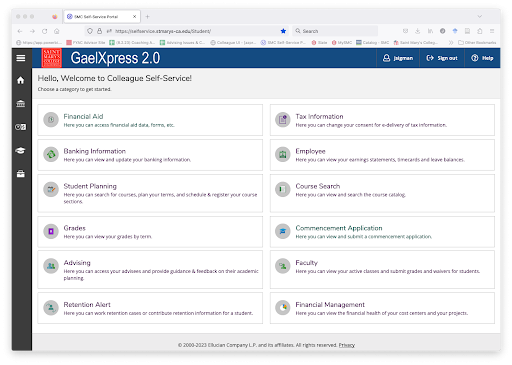
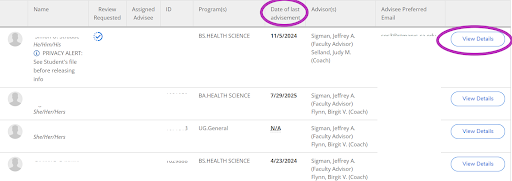
- Opening up the Advising module will direct you to your list of assigned advisees. The date of last advisement column provides a quick way to see when you last approved a student for registration. To see details about an advisee click View Details.
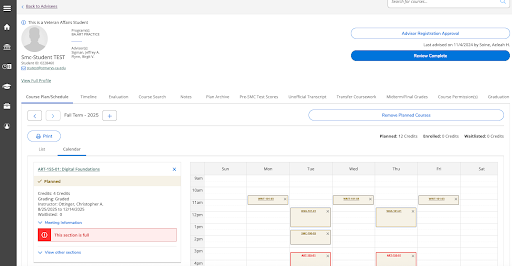
Once you open up the student’s profile you will see several tabs, each of the tabs is described below.
- Course Plan/Schedule Tab: Shows registered and planned courses the student has selected. Students are only registered for classes that have a green check mark and say “Registered.” If the courses appear as “Planned” it means that the student or their advisor has planned a course but the student is not registered for the course. If the course appears in red it often indicates the course is full or there is a time conflict with the student’s other classes.
Toggle between the list and calendar views to see the student’s schedule presented as a list or calendar
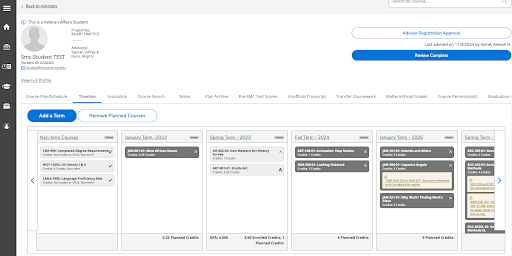
- Timeline Tab: Shows the courses a student has completed, planned, or is registered for. When you look at the current semester, the courses with a check mark indicate that the student has registered for the course or the course is in progress. If the course does not have a check mark, the student is not registered for the course.
The Timeline Tab will also include courses the student transferred in for another institution. A basic way to differentiate between classes taken at SMC and classes taken elsewhere on the student’s timeline is that the classes taken at SMC will display a two digit number indicating section after the course number [example: WRIT-101-03] Credits that the student received from an Advanced Placement or International Baccalaureate exam will often appear as “Non-Term Courses,” indicating that the credits are not associated with a particular term (e.g. Fall, Spring, Summer)
- Evaluation tab: Displays the students academic evaluation. Described in a later section of the handbook.
- Course Search tab: This tab links you to the Catalog Advanced Search to search for current course offerings.
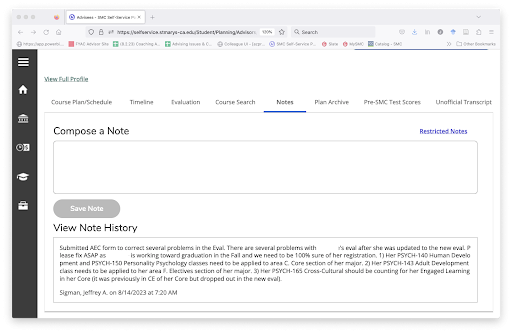
- Notes tab: The notes tab allows you to keep track of notes that you make while advising a student.
We highly recommend using the “Notes” section on the student’s GaelXpress profile to record meeting notes and provide a link to the student's plan to graduation. Using the notes section can help you remind yourself of previous meetings or communication with the student and support the student and their new advisor if the student changes advisors.
To add a note, compose a note using the text box provided. When you are finished click the “Save Note” button. Sometimes an advising note will not save when clicking the “Save Note” button. We recommend saving a copy of the note in a separate word document to avoid having to rewrite the note. Additionally, notes are visible to students through the student’s GaelXpress module.
- Pre-SMC Test Scores tab: If students took and submitted their AP or IB scores to SMC, you will see the exam scores in this tab.
- Unofficial Transcript tab: Use this tab to download a copy of your advisee’s unofficial transcript.
- Transfer Coursework tab: This tab includes coursework that the student has completed at other institutions. In order for coursework to transfer, students must submit an official transcript from the institution where they took the course. This tab will list the name of the course that the student took and the equivalent course at SMC, if applicable.
- Midterm/Final Grades tab: This tab will show your advisee’s midterm and final grade
Additional GaelXpress Resources
The Registrar’s Office has created resources to orient advisors to the GaelXpress Advising module.
GaelXpress 2.0 Advising Walkthrough Document